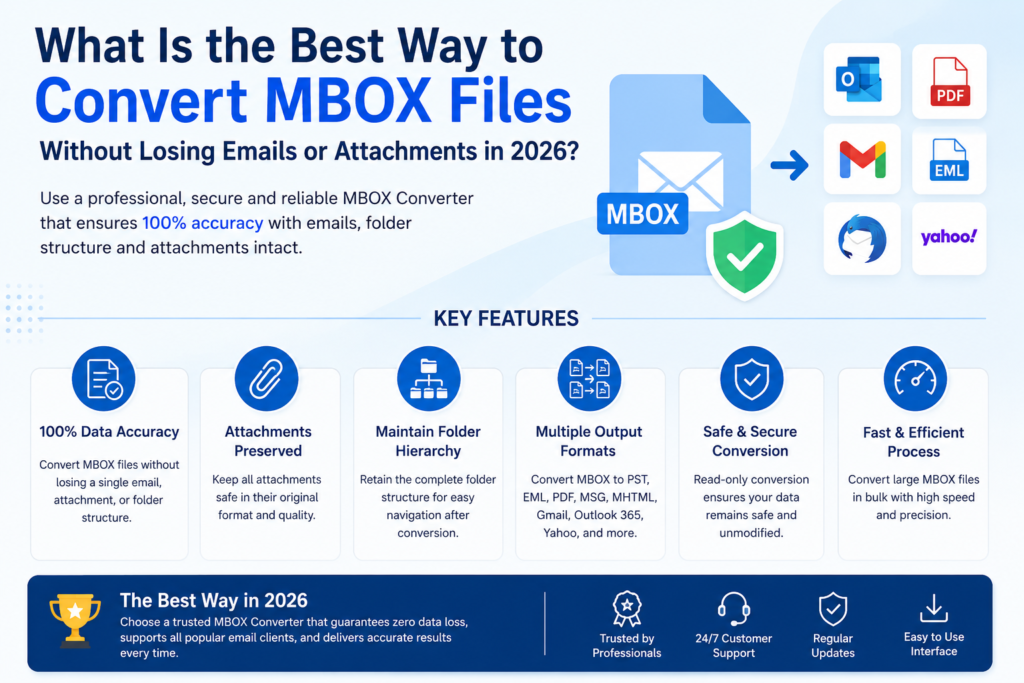

MBOX is one of the oldest and most widely used mailbox formats, adopted by clients like Thunderbird, Apple Mail, Eudora, and many others. But as businesses and individuals move toward cloud-based platforms, the need to convert MBOX files into other formats or migrate them directly to modern email services has become common. The challenge most people run into is simple but frustrating: how do you convert MBOX files without losing a single email, folder, or attachment along the way?
In 2026, with data volumes larger than ever and email accounts holding years of communication history, getting this right matters more than it used to. A failed or partial conversion can mean losing important business records, legal correspondence, or personal memories stored as attachments. This article breaks down what actually causes data loss during MBOX conversion, and what to look for in a reliable solution.
Why MBOX Conversion Often Goes Wrong
Before looking at solutions, it helps to understand where things typically fail:
- Manual export/import methods often strip metadata such as read/unread status, timestamps, or folder structure.
- Free or outdated tools may not support newer MBOX variants created by less common clients, leading to corrupted or incomplete exports.
- Large file sizes can cause manual methods or basic converters to crash mid-process, resulting in partial data loss.
- Attachments getting detached from their parent emails is one of the most common issues, especially when converting to formats like PDF or CSV.
- Duplicate emails pile up when migrating from multiple MBOX sources into a single destination, cluttering the final mailbox.
Knowing these failure points makes it easier to evaluate whether a conversion method is actually safe to use.
What a Reliable MBOX Conversion Method Should Offer
To convert MBOX files without losing data, a good approach — whether manual or tool-based — should check these boxes:
- Complete data integrity: Emails, attachments, headers, and folder hierarchy should remain intact after conversion.
- Format flexibility: Support for common formats like PST, EML, MSG, PDF, and CSV, since different use cases call for different output types.
- Batch processing: The ability to convert multiple MBOX files at once, rather than one at a time.
- No file size restrictions: Large mailboxes shouldn’t cause the process to fail or truncate data.
- Preview before export: A way to verify data accuracy before committing to the final conversion.
- Duplicate handling: An option to detect and remove repeated emails so the final result stays clean.
Convert MBOX Files to Office 365
One of the most common migration paths today is moving MBOX data directly into Office 365. Since many organizations rely on Microsoft’s ecosystem for email, calendars, and collaboration, consolidating older MBOX archives into Office 365 makes day-to-day access far simpler.
When converting MBOX files to Office 365, it’s important that the process preserves folder structure, message threading, and attachments exactly as they existed in the source file. A rushed or unreliable migration can scatter emails across the wrong folders or drop attachments entirely, which defeats the purpose of migrating in the first place. Look for a method that supports direct migration (rather than a multi-step manual workaround) and allows filtering by date range, so you’re not forced to move an entire mailbox when only certain emails are needed.
Convert MBOX Files to Gmail
Gmail remains one of the most popular destinations for MBOX migration, particularly for users consolidating multiple accounts or switching from a desktop client to a web-based one. Google Takeout is often the starting point for exporting Gmail data as MBOX, but going the other direction — importing MBOX into Gmail — requires a bit more care.
A safe MBOX-to-Gmail conversion should retain sender/recipient details, timestamps, and attachments without needing to touch IMAP settings manually for every message. This is especially useful for anyone centralizing several old MBOX archives into one active Gmail account, since manual IMAP-based imports can be slow, error-prone, and difficult to track for completeness.
Tips to Avoid Data Loss During MBOX Conversion
- Always back up your original MBOX files before starting any conversion.
- Test the process on a small batch of emails first to confirm attachments and formatting come through correctly.
- Use date filters if you only need a specific range of emails, reducing the risk of overwhelming the conversion process.
- Check for a duplicate removal feature if you’re merging MBOX data from multiple sources.
- Verify the final output with a preview or spot-check before deleting any original files.
A Tool Worth Considering
For users who want a straightforward, all-in-one option rather than piecing together manual workarounds, MacSonik MBOX Converter is one tool built specifically to handle these scenarios — supporting batch conversion, multiple output formats, duplicate removal, and direct migration to platforms like Office 365 and Gmail, all while aiming to keep attachments and folder structure intact.
Final Thoughts
Converting MBOX files without losing emails or attachments comes down to understanding where common methods fail and choosing an approach that prioritizes data integrity at every step — from preview to final export. Whether the destination is Office 365, Gmail, or another format entirely, taking a careful, verified approach will save time and prevent the headache of missing or corrupted data down the line.