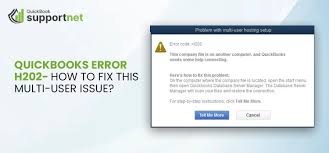

When working in a multi-user environment, QuickBooks users may encounter several network-related errors that disrupt workflow and interrupt access to company files. One of the most common issues is QuickBooks Error H202, which prevents users from switching to or working in multi-user mode. This error typically appears when QuickBooks Desktop cannot communicate with the server hosting the company file. Since the multi-user feature requires proper connectivity between user systems and the host computer, the error can stop a team from collaborating and working efficiently.
Fortunately, QuickBooks Error H202 can be resolved by using a series of proven methods that fix communication, network, and hosting issues. This guide covers the top solutions to help you troubleshoot the error quickly and restore multi-user functionality without compromising data.
Understanding Why QuickBooks Error H202 Occurs
Before exploring the solutions, it’s important to understand why this error happens. QuickBooks triggers this code whenever it detects a problem with the connection between the workstation (the computer trying to access the file) and the host server (the computer where the company file is stored).
The most common reasons include:
- Damaged or blocked QuickBooks services
- Incorrect hosting configuration
- Firewall or security software blocking communication
- Damaged DNS settings
- Issues with the QuickBooks Database Server Manager
- Network connectivity failures
- Incorrect folder permissions
- Inactive QuickBooksDBXX or QBCFMonitor services
Knowing the root causes helps you apply the right method based on your setup and error message.
1. Use QuickBooks Tool Hub to Fix the Error
One of the most effective tools for resolving this error is the QuickBooks Tool Hub—a free utility provided by Intuit.
Steps:
- Close QuickBooks Desktop on all systems.
- Download and install the latest version of QuickBooks Tool Hub.
- Open the Tool Hub and click Network Issues.
- Select QuickBooks Database Server Manager.
- Browse and select your company file folder.
- Click Start Scan and allow the tool to repair network setups.
Once complete, try switching to multi-user mode again. In most cases, this resolves QuickBooks Error H202 instantly.
2. Verify Hosting Settings on All Workstations
Only the server should host the company file—never the workstations. Incorrect hosting settings often trigger the H202 error.
Steps:
- Open QuickBooks on each workstation.
- Go to File > Utilities.
- If you see Host Multi-User Access, it means hosting is off—and that’s correct.
- If you see Stop Hosting Multi-User Access, click it to disable hosting.
Now perform the same check on the server and ensure hosting is enabled only there.
3. Check QuickBooks Services on the Server
Two critical services must be running: QuickBooksDBXX (XX refers to your version) and QBCFMonitorService.
Steps:
- On the server, press Windows + R, type services.msc, and press Enter.
- Locate QuickBooksDBXX.
- Right-click > Properties > set Startup type: Automatic.
- Click Start if the service isn’t running.
- Repeat these steps for QBCFMonitorService.
After restarting both services, try opening the company file from a workstation.
4. Configure Firewall and Security Settings
Firewalls often block QuickBooks programs from accessing the network, which results in QuickBooks Error H202. QuickBooks needs specific ports to function properly.
Steps:
- Open Windows Firewall.
- Click Advanced Settings.
- Create Inbound Rules for QuickBooks using these ports:
- QuickBooks 2022–2025: 8019, 56728, 55378–55382
- Create the same as Outbound Rules.
- Restart your computer.
Firewalls blocking QuickBooks is one of the most common causes of H202, so configuring them correctly is essential.
5. Ping the Server to Test Network Connectivity
If the workstation cannot reach the server, multi-user mode will not work.
Steps:
- Find the server’s name by pressing Windows + R, typing CMD, and entering:
hostname - On the workstation, open Command Prompt.
- Type:
ping [server name]
If the ping fails or shows packet loss, you have a network connection problem. Troubleshoot cabling, Wi-Fi, or network permissions.
6. Add the Server to the Workstation’s Host File
Updating the hosts file can help QuickBooks route traffic correctly.
Steps:
- Press Windows + R, type:
C:WindowsSystem32driversetc - Locate the hosts file and open it with Notepad (Run as Administrator).
- Add the server’s IP address and name, like:
192.168.1.10 SERVERNAME - Save the file and restart QuickBooks.
This method helps fix DNS and routing issues behind QuickBooks Error H202.
7. Ensure Folder Permissions Are Correct
Your company file folder needs complete access permissions for all users.
Steps:
- Right-click the folder containing the .QBW file.
- Select Properties > Security tab.
- Click Edit, then give Full Control to:
- Everyone
- QuickBooks user accounts
- Click Apply > OK.
Reload QuickBooks and test multi-user mode.
8. Use QuickBooks Database Server Manager to Rescan Folders
Sometimes, QuickBooks cannot access folders unless they are scanned through the Database Server Manager.
Steps:
- Open QuickBooks Tool Hub.
- Go to Network Issues.
- Click Database Server Manager.
- Add your company file folder if it’s not listed.
- Click Scan.
This reconfigures network paths and often resolves connection errors.
9. Restart the QuickBooks Hosting Server
A simple server reboot can often clear network conflicts.
Steps:
- Restart the server hosting your company files.
- Allow 1–2 minutes after reboot before opening QuickBooks.
- Try switching to multi-user mode from a workstation.
This refreshes all services, including network controls and hosting configurations.
10. Use a Dedicated Server for QuickBooks Hosting
If multiple people use the same computer for both QuickBooks hosting and general tasks, conflicts can occur.
A dedicated hosting computer:
- Improves performance
- Reduces network errors
- Reduces third-party software conflicts
- Ensures stable QuickBooksDBXX service
If possible, use a server exclusively for QuickBooks data.
Final Thoughts
Dealing with QuickBooks Error H202 can be disruptive, especially when multiple users rely on shared files to manage accounting tasks. Fortunately, by applying the right troubleshooting methods—verifying hosting settings, configuring firewall rules, scanning folders, checking services, and optimizing your network—you can quickly restore multi-user functionality.
These solutions not only help fix the error but also strengthen your overall network environment, reducing the likelihood of facing similar issues in the future. With proper maintenance, updated software, and stable network connectivity, you can ensure seamless QuickBooks operations for your entire team.