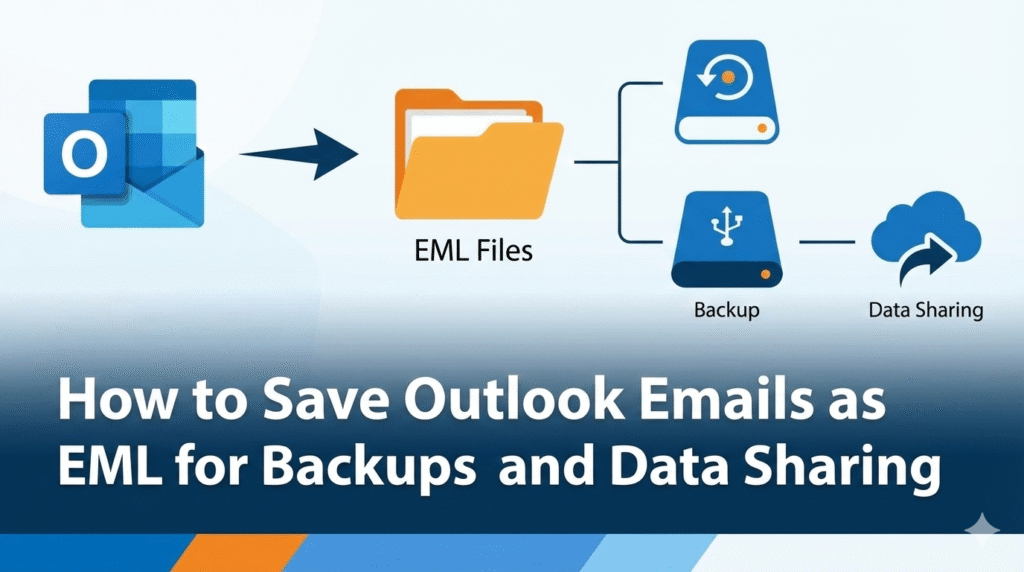

Summary: Outlook OST files are saved on your device offline, whereas EML files are text versions of emails that people can save on their computers. But in some cases, customers want to change OST files to EML files. This article will help you do so. OST to EML is a safe and easy way to change your files to EML format.
Microsoft Outlook uses the Offline Storage Table (OST) file format to store user data in a place that isn’t connected to the internet. It keeps emails, tasks, contacts, notes, and calendars as OST files. It makes sure that consumers can get to all of their data even when they don’t have an internet connection. An EML file, on the other hand, is an electronic message that comprises one email and other information about it, such as the message, date, subject, sender/receiver details, and attachments. Several email applications, such as MS Outlook, Thunderbird, Zoho Mail, Windows Live Mail, and Apple Mail, use it.
Users can view their emails through a variety of email client apps. Users generally look for ways to make sure that files are safely converted between different formats because emailing platforms are very diverse from each other. The same thing happens when you convert OST and EML file types. A lot of people who use Outlook wish to store OST files as EML files since email clients can read them easily.
Why you should change OST files to EML format
There are a number of reasons why people need to change OST files to EML format. Some of these are:
- System crash: A virus attack on the MS Exchange server could be the main reason for a system crash. This could get out of hand and cause Outlook to make a lot of mistakes.
- Backup needs: Users can utilize numerous methods to back up OST files in EML format in case their system fails or they accidentally delete them.
- Sharing data: It’s not easy to share OST files with other people. When you use an EML file, the transfer is rapid and easy, which makes communication even smoother.
- Changing to a different platform: As was said before, the EML format works with many systems, whereas the OST format only works with Outlook. So, a conversion is needed to move to a different email client.
How can you change an OST file to EML?
There are two ways to save an OST file to EML format: while the OST file is connected to the Exchange Server and when it is not. Read the situations below and follow the steps exactly.
1. When the Exchange Server connects to the OST file
When the OST file is connected to the Exchange server, you can modify it to EML format by hand. But there are several things you need to remember before you convert.
Conditions that must be met:
- The user must have set up an IMAP Gmail account in MS Outlook.
- Mozilla Thunderbird, Windows Live Mail, Zoho Mail, and other email clients that can read EML files.
Steps to manually change an OST file to an EML file
Before going forward, make sure you have met all of the requirements listed above. When the OST file is connected to Exchange Server, do the following to save it as an EML file:
Step 1: Copy the OST file to Gmail:
First, you need to move the OST file you need to the Gmail mailbox that you set up. You can do this by dragging and dropping.
Stage 2: Set up the same account in Thunderbird:
Now you need to set up the same Gmail account with Thunderbird, which can read EML files. When the setup is done, the data in the OST file will show up in Thunderbird. This is how you can open an OST file with Thunderbird. To set up your IMAP account in Thunderbird, follow these steps:
- Open Mozilla Thunderbird on your computer and click on the three horizontal lines.
- Next, choose the option for Account Settings.
- Click on Add Mail Account in the Account Settings.
- In the Account Setup window, fill out all the required information and click Configure manually.
- Now, type in the information for the incoming and outgoing servers and click the Re-test button.
- Click Done, then Finish to finish the procedure.
Stage 3: Move the EML file from Thunderbird to another location:
The user can drag and drop the OST emails anywhere on your system again. It will store the data in the EML from the chosen location on its own. Follow the instructions below to use Thunderbird to change an OST file to an EML file:
- To choose the emails you want to change to EML format, press CTRL+A.
- Now, click on the emails you want to save and pick “Save As.”
- Choose EML format from the “Save As” wizard.
- Next, look for the file’s destination.
- Now, click “Save” to finish the process.
Limitations of doing things by hand
There are a few reasons why you shouldn’t use manual ways to change OST files to EML, PDF, MSG, or any other format:
- Manual procedures are hard to understand and can go wrong.
- Needs a lot of technical know-how.
- A long and time-consuming process.
- Not good for saving more than one OST file as EML.
- It only works when it is connected to Microsoft Exchange Server.
2. When the OST file isn’t linked to the Exchange Server
When the OST file is not connected to the Exchange Server, there is no way to save in EML format by hand. For this situation, it’s best to utilize a professional software to convert OST to EML. The OSTFileExporter OST to EML converter software was made to get back, change, and save any OST file into a number of different file types, such as EML, PST, MSG, MBOX, PDF, and others. You can use this tool for a lot of different things. Here are some of its features:
- It can be used to convert one or more OST files while keeping the data safe.
- It may selectively change OST files to EML files.
- This software works with all versions of Windows and Microsoft Outlook.
How to use an automated tool to save an OST file as an EML file
OSTFileExporter OST to EML Converter makes it easy to save your OST files into EML files. You can do the following:
- Click the Browse button to choose the OST file you wish to save as an EML file.
- After you choose the file, you can look at its contents before saving it as an EML file. choose the email and then choose “Save as EML.”
- Use the filters to choose the OST data you want. Now, choose where you want to save the EML file and click the Finish button to finish the procedure.
In conclusion
There are several discrepancies between the OST and EML file formats, which make the transfer process difficult. The most crucial question is, “How do I change important OST emails into EML files?” The methods used depend on whether or not OST is connected to the Exchange Server. We have given answers for both situations. But to avoid any problems during conversion, use the tool that is advised.