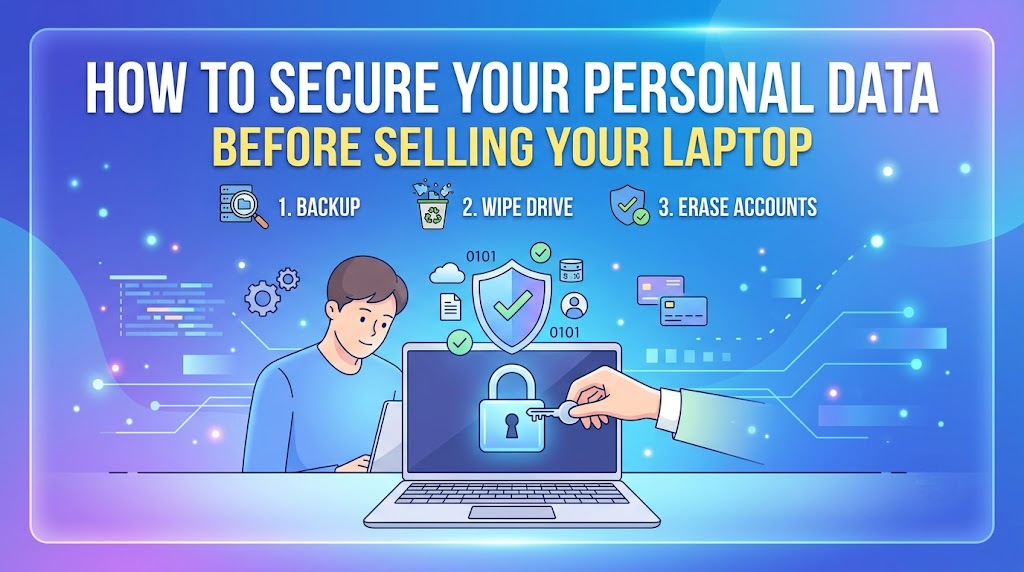

sell your old laptop is a smart way to recover some of its value while making space for a new device. However, before handing it over to a buyer, one important step should never be ignored protecting your personal data. Many people simply delete their files or perform a quick format, believing their information is gone forever. In reality, deleted data can often be recovered with specialized software if it has not been erased properly.
Whether your laptop contains personal photos, office documents, banking information, or saved passwords, taking a few extra precautions can help prevent unauthorized access to your private information.
1. Create a Complete Backup of Your Important Files
The first step before selling any laptop is creating a backup of everything you want to keep. Copy important documents, family photos, videos, work files, and other valuable data to an external hard drive or a trusted cloud storage service.
Before moving to the next step, double-check that all your files have been backed up successfully. Once your laptop is erased, recovering forgotten files can become difficult or even impossible.
2. Sign Out of All Your Accounts
Most laptops stay logged into multiple online accounts for convenience. Before selling your device, make sure you sign out of every account, including:
- Email accounts
- Social media platforms
- Cloud storage services
- Video streaming apps
- Shopping websites
- Banking applications
- Office productivity tools
If possible, remove the laptop from your list of trusted devices within each account’s security settings.
3. Remove Saved Passwords from Your Browser
Modern web browsers store usernames, passwords, payment details, and addresses. Even after deleting browsing history, this information may still remain if you don’t remove it properly.
Open your browser settings and delete:
- Saved passwords
- Autofill information
- Payment methods
- Browsing history
- Cookies
- Download history
This ensures the next user cannot access your personal accounts.
4. Deactivate Licensed Software
Many paid applications are linked to a limited number of devices. Before sell your laptop, deactivate software licenses where required.
Examples include:
- Microsoft Office
- Adobe Creative Cloud
- Antivirus software
- Professional editing software
- Accounting applications
Doing this allows you to activate the software on your new laptop without license issues.
5. Encrypt Sensitive Information (If Needed)
If your laptop contains confidential business or financial information before you erase it, enabling full-disk encryption adds another layer of protection. Even if someone tries to access the drive before it is erased, encrypted data is much harder to read without the proper credentials.
Many modern operating systems include built-in encryption features that can be enabled with just a few steps.
6. Perform a Proper Factory Reset
Simply deleting files or formatting the hard drive is not enough in many cases. A factory reset reinstalls the operating system and removes user accounts, installed applications, and personal files.
Most Windows and macOS laptops provide built-in recovery options that make the reset process straightforward.
Always choose the option that removes all personal files rather than keeping them.
7. Securely Erase the Storage Drive
For additional security, consider using secure erase tools that overwrite existing data. This significantly reduces the chances of deleted files being recovered using data recovery software.
This step is especially important if your laptop contains:
Business documents
Client information
Financial records
Tax documents
Personal identification files
A proper secure erase provides greater peace of mind before transferring ownership.
8. Remove Connected Devices
Disconnect all accessories linked to your laptop before selling it.
These may include:
- External hard drives
- USB flash drives
- Wireless mouse
- Keyboard
- Printers
- Bluetooth speakers
- Smart devices
Also remove any paired Bluetooth connections that are no longer needed.
9. Check Hidden Folders
Many users save files on the Desktop or Documents folder but forget about Downloads, Pictures, Videos, or other hidden folders.
Take time to review:
- Downloads
- Desktop
- Documents
- Pictures
- Videos
- Recycle Bin
- Cloud sync folders
Removing overlooked files helps ensure no personal information remains.
10. Reset BIOS or Firmware Passwords
If you previously added BIOS or firmware passwords for security, remove them before selling the laptop. Otherwise, the new owner may face difficulties accessing or reinstalling the operating system.
This is a small but important step that many sellers overlook.
Why Data Security Matters
Identity theft and online fraud continue to increase every year. Even a small amount of personal information can be valuable to cybercriminals. Saved passwords, financial documents, tax records, or personal photographs can all be misused if they fall into the wrong hands.
Spending a little extra time securing your laptop before selling it helps protect your privacy and reduces unnecessary risks.
Conclusion
Selling your laptop should not come at the cost of your personal privacy. Before handing over your device, make sure you back up important files, sign out of your accounts, remove saved passwords, deactivate software licenses, perform a proper factory reset, and securely erase the storage drive whenever possible.
These simple precautions help ensure your personal information stays protected while making the laptop ready for its next owner. A few careful steps today can save you from serious privacy and security issues in the future.